Let's Get Started.
Welcome to Web3
Your smart and simple crypto and NFT cold storage solution has arrived. To unlock the future of crypto security, set up your new Arculus® Cold Storage Wallet by following the simple guides below.




Set up your Arculus® Cold Storage Wallet in just 6 minutes

Getting Started Set-Up Guide
-



Download the Arculus App
Smart, simple crypto cold storage is all yours with the Arculus App. From the app dashboard, you can buy, swap, send, and receive crypto within your secure vault. The app is available on both iOS and Android.
-
Set Up Your Wallet
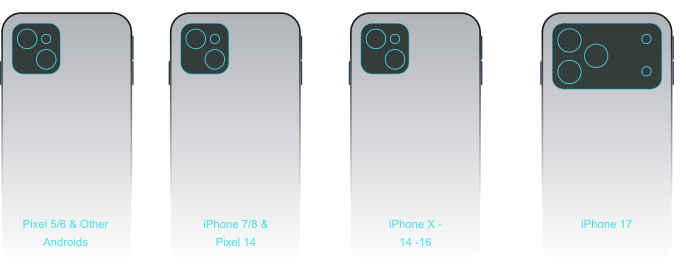
First, open the app. Now, place your Arculus Card on a flat surface, with the back facing up. Reference the card placement visuals above, and find your correct phone model to ensure the card is correctly aligned to the back of your phone. Tap "Create a New Wallet" from the configuration menu, and then leave your card and phone aligned until setup shows complete.
-

Create a 6-Digit PIN
To set-up your 3-factor authentication protocols, first create a secure and safe 6-digit PIN. Enter your PIN, confirm the PIN. Once confirmed, close out the PIN process by tapping your Arculus Key card to the back of your phone.
-
Write Down Your 12 or 24-Word Recovery Phrase
Next, you’ll have an option to choose either a 12 or 24-word recovery phrase. Please make sure to write this down, as it is the only way to recover your wallet should your card or phone ever be lost or stolen. For safe keeping, go analog. Do not screenshot or store your recovery phrase on a device. Save it in a safe place separate from your Arculus Cold Storage Wallet. This phrase will only be shown to you once.
-

Re-enter Your 12- or 24-word phrase
On the next screen, you’ll be asked to re-enter your phrase into the Arculus App. Tap on the words in the correct order and they will populate into the "My Secret Phrase" box. When the secret phrase is selected correctly, hit "Confirm." To remove a word from the box, tap on the word and it will go back to the bottom of the screen.
-
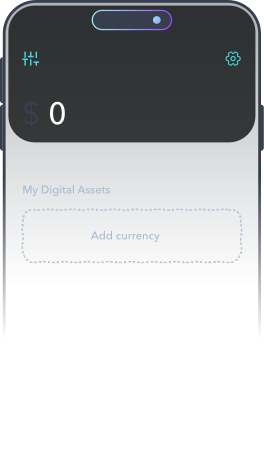
Welcome to Arculus
You’re ready to start using Arculus. Navigate to your dashboard to transfer your existing crypto portfolio to Arculus or buy new digital assets.
-
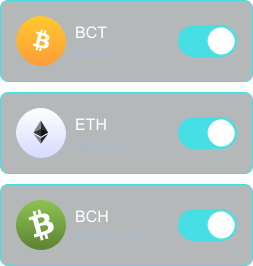
Choose Your Currencies
To choose the currencies that you would like to see in your Arculus dashboard, tap the "Wallet" icon. From there, click on Bitcoin, Ethereum, or other currencies. Now you’re ready to manage your cryptocurrencies with your Arculus Cold Storage Wallet.
-
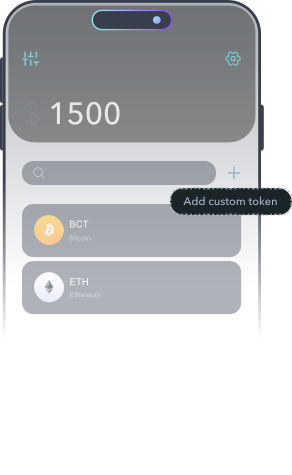
Add Custom Tokens
In addition to the list of officially supported coins, you can also add custom tokens to your wallet manually.
Learn More
Getting Started Videos Guides
-
How to set up your wallet
-
Adding and removing assets to your home screen
-
How to send Crypto to your Arculus wallet
-
Write Down Your Recovery Phrase
-
Confirm Your Secret Phrase
-
Welcome to Arculus
Which coins, tokens and chains do you support?
At Arculus, we support over 95% of crypto assets by market capitalization. Our platform supports custom tokens on Ethereum (ETH), Polygon, and Binance Smart Chain, allowing users to add any token on these chains. This grants access to over 10,000 digital assets, ensuring a seamless, supportive environment for all your digital asset endeavors.
Common Getting Started Questions FAQ
Open the Arculus app and tap Receive. Select the asset you'd like to receive, then share your wallet address or QR code with the sender. Make sure the sender is using the correct network.
Navigate to the Earn section in the Arculus app, select a supported staking asset, choose the amount you'd like to stake, and confirm with your Arculus Key card tap.
You can reach our support team 24/7 through the Help Center in the Arculus app, or by visiting support.arculus.co. We also have an active community on Discord and Twitter.
Arculus supports over 10,000 digital assets including Bitcoin, Ethereum, Polygon, and any custom token on EVM-compatible chains. Visit our Coin Support page for the full list.
In the Arculus app, go to Settings then Cards. You can add additional Arculus Key cards, label each one, and switch between them at any time. Each card operates as an independent hardware key.
Have additional
questions?
Explore our product support hub to find answers and guides for more topics including tax documentation, account recovery, and more.